

Use Pace to adjust silence in your edit. Review a short section after each change so you can hear its effect.
Change pause length
- Open the project and select Pace.
- In Set pace, adjust the pause setting. A shorter value produces tighter pauses; a longer value leaves more space.
- To retain pauses, move the Pace slider to its endpoint labeled Keep all pauses.
- Select Apply, then listen to several sentence transitions.
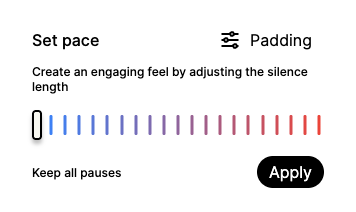
Open the control screenshot at full size.
Adjust padding
Open the Padding view in the pacing controls. Adjust the start and end values around cuts. The link control lets you change the values together or separately. Select Apply and listen again.
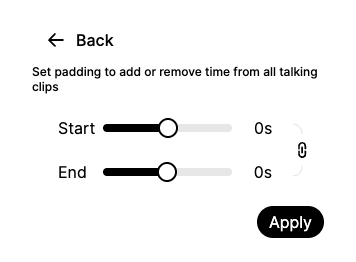
Open the control screenshot at full size.
Make small changes. Listen for clipped consonants, breaths you want to keep and abrupt transitions. A setting that suits one speaker or recording may not suit another.
When a complete word or take is missing
Turn on Show cuts and restore the removed speech. Padding is a boundary adjustment; it is not a substitute for selecting the right take.
Before exporting
Check the start and end of the project and several cuts in the middle. If a particular boundary remains wrong, send support its source timestamp, your Pace settings and whether you hear it in the preview or exported file.