

Start with a short spoken recording so you can check the full workflow before editing a longer project.
Import your recording
- Open Gling and start a new project.
- Add your video or audio file. For a single recording, keep it on the main track.
- Choose the Video spoken language that matches the recording, then select Continue.
- Choose the editing options you want, such as Cut silences, Cut bad takes or Cut filler words. Continue to process the project.

Open the file import screenshot at full size.
Review the edit
Play the project and listen through the cuts. AI decisions can need correction, especially around repeated takes, names and sentence endings.
Turn on Show cuts to inspect removed material. Select speech and use Uncut to restore it, or Cut to remove material you do not want. See the recovery steps.
Save a video
- Open Export.
- Choose Video (.mp4) and the available video settings.
- Start the export. When it finishes, open the saved file and check the beginning, a few cuts and the ending.
For audio only, choose Audio (.wav). For a separate subtitle file, choose Subtitles (.srt). Available choices depend on your source media and plan.
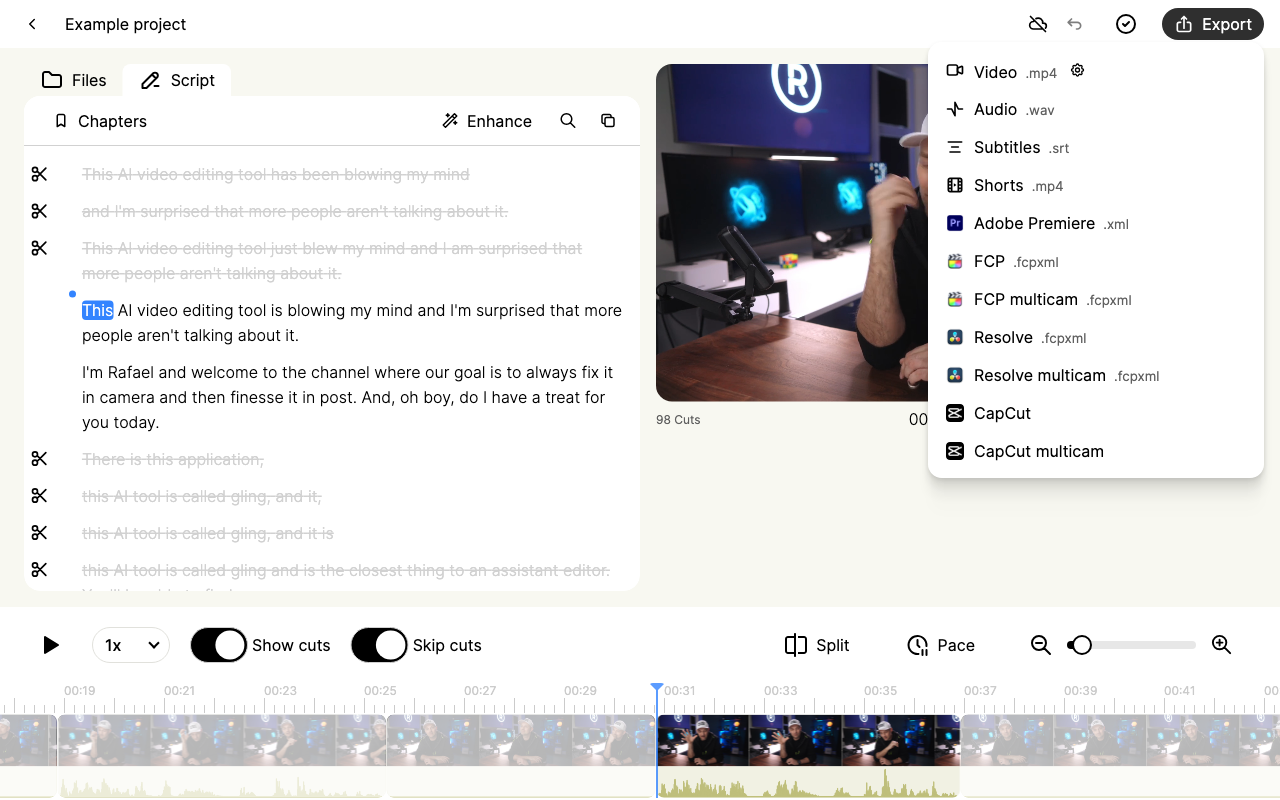
Open the export menu screenshot at full size.
Continue in another editor
Timeline exports for Premiere Pro, Final Cut Pro and DaVinci Resolve require the Gling desktop app and an eligible plan. Choose the guide for your destination before exporting, and keep the original media available.
Refine the edit or choose export quality
For precise transcript cuts, timeline splits and Undo, use manual editing. Review MP4 resolution, bitrate and frame rate before creating the final file. For CapCut, use the direct handoff guide.