

Use the Gling desktop app and an eligible paid plan for an editable CapCut project. A finished MP4 is a separate option if you only need the cleaned video.
Send an editable project to CapCut
- Install and open CapCut Desktop on the same computer as Gling. Keep the original recordings available.
- Open your edit in Gling and choose Export.
- Choose CapCut for a regular edit, or CapCut multicam when you need the camera angles available in the destination.
- At Copy media files?, choose Copy medias to put media into the CapCut project's folder. This needs additional disk space. Skip copy leaves the export dependent on existing file locations.
- Wait for the export to finish, then check CapCut's local project list. If CapCut was already open, close and reopen it to refresh the list.
Gling writes a CapCut project into CapCut's local project area. This is not a Premiere XML or Final Cut XML file to import. The project name ends with - Gling.
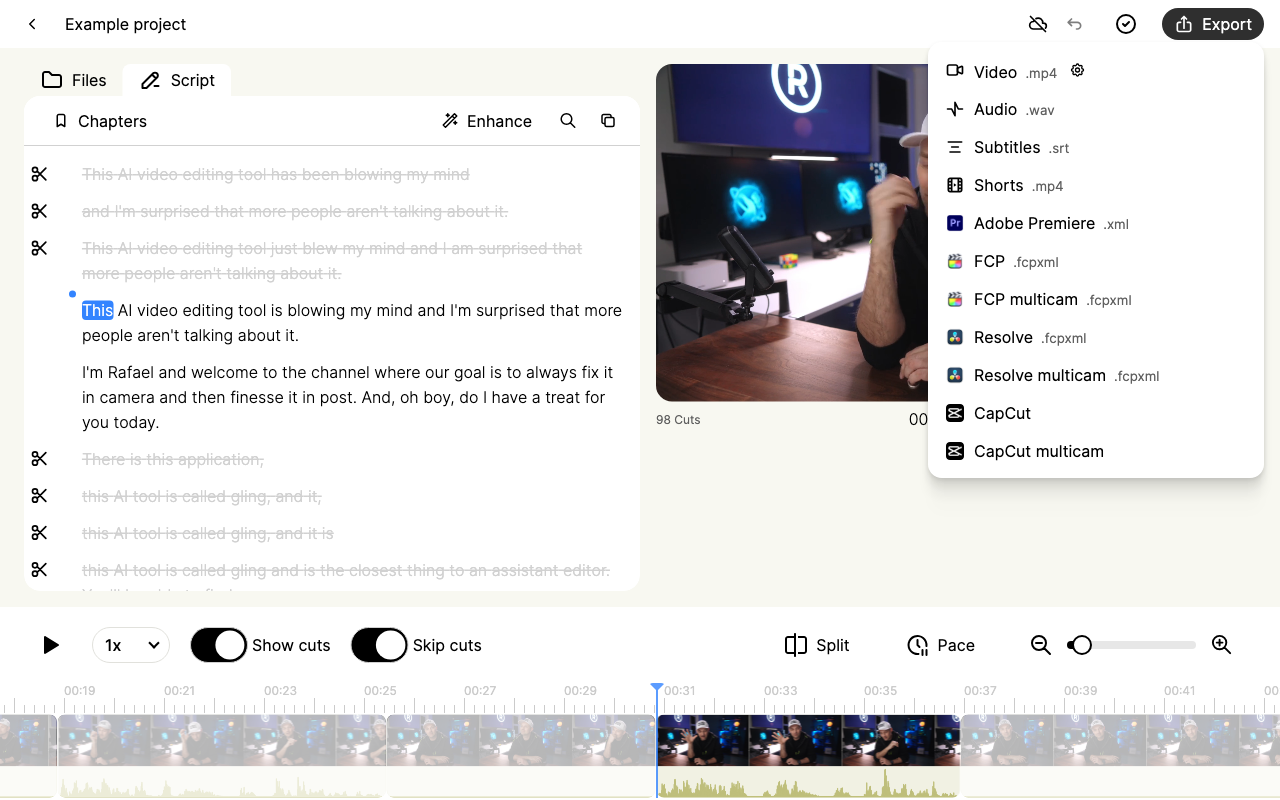
Open the CapCut export menu screenshot at full size.
Check the imported result
Play the beginning, several cut boundaries and the ending. Check camera selection, microphone audio, enhancement, captions, B-roll and framing separately. A project appearing in the list does not prove that every effect transferred correctly.
With multicam, Gling's preview displays a selected angle. That is different from placing consecutive recordings one after another. Review your source-track arrangement before recreating a project, because processing it again can use allowance.
If the project is missing or the media is offline
- Confirm that the export finished in the desktop app and that you have enough internal disk space for copied media.
- Keep the original files in their working folder. Reconnect an external drive if the export references it.
- Update Gling and make a fresh export. Updating does not repair an older exported project folder.
- Keep the failed export and note the exact Gling and CapCut versions. Send support the project name, error and a screenshot of the destination.
Older releases had CapCut timing and project-name problems. The current exporter replaces path separators in project names. Do not assume an old workaround diagnoses a new failure.
Use an MP4 when you need a finished video
Choose Export > Video (.mp4), then import that finished file into CapCut. It contains the rendered Gling edit; it does not preserve separate editable cuts, camera angles and overlays. For color changes, see washed-out export colors.