

Decide which recording should drive the transcript and cuts before you import. Files from consecutive parts of a recording and simultaneous camera angles need different arrangements.
Choose the main track
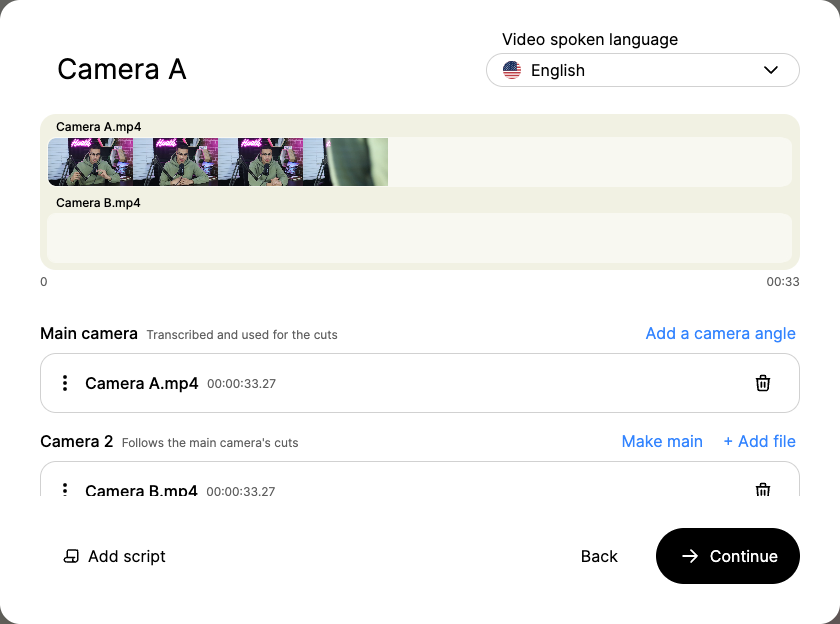
The main track is transcribed and used for the cuts. Other camera tracks follow the main camera's cuts. Use the recording with the speech you want Gling to analyze.
Add camera angles
Open the control screenshot at full size.
- Add the main recording to the new project.
- Choose Add a camera angle for another view of the same recording.
- Add that camera's files to its track. Use Make main if another track should drive transcription.
- Review Gling's question about whether files are camera angles of one recording or play one after the other. Choose the arrangement that matches your footage.
Use + Add file within a track for consecutive files belonging to that recording. Do not treat unrelated recordings as alternate angles.
Separate microphone audio
Choose the audio you want analyzed for the main track and check the alignment against your camera footage before relying on the edit. Track assignment alone does not prove that all recordings are synchronized. If you are unsure how your files should be arranged, send support a description of the cameras, microphone and start times before processing the full project.
Check the destination
Gling offers separate regular and multicam choices for supported destinations. Use the option that matches the timeline you need. External-editor exports require the desktop app. Check the imported cut timing, angle changes, audio and beginning and end of the recording before continuing a long edit.
Check camera sync and the active angle
Automatic camera sync needs overlapping, recognizable audio from the same recording across the camera files. Different microphones can work when they capture sound in common. The regular editor does not provide a manual camera-offset adjustment, so report a mismatch with the original camera files and a timestamp rather than assuming a track assignment will repair it.
Gling previews one selected angle at a time. A clip's Video track menu changes that angle; it does not move every camera onto one sequential source row. Keep consecutive recordings on the same source track. Use CapCut multicam or the appropriate destination's multicam route when you need alternate angles available after export.