

Final Cut timeline export requires the Gling desktop app and an eligible plan. Keep your source media available throughout the handoff.
Choose the export
- Review the project in Gling and open Export.
- Choose FCP (.fcpxml) for a regular timeline. Choose FCP multicam when you need the multicam workflow.
- Save the exported file and retain any media generated alongside it.
If Gling asks Keep the media timecode?, Keep timecode retains the source timecode. Strip timecode creates or reuses media copies starting at zero. Retain those copies with the handoff.
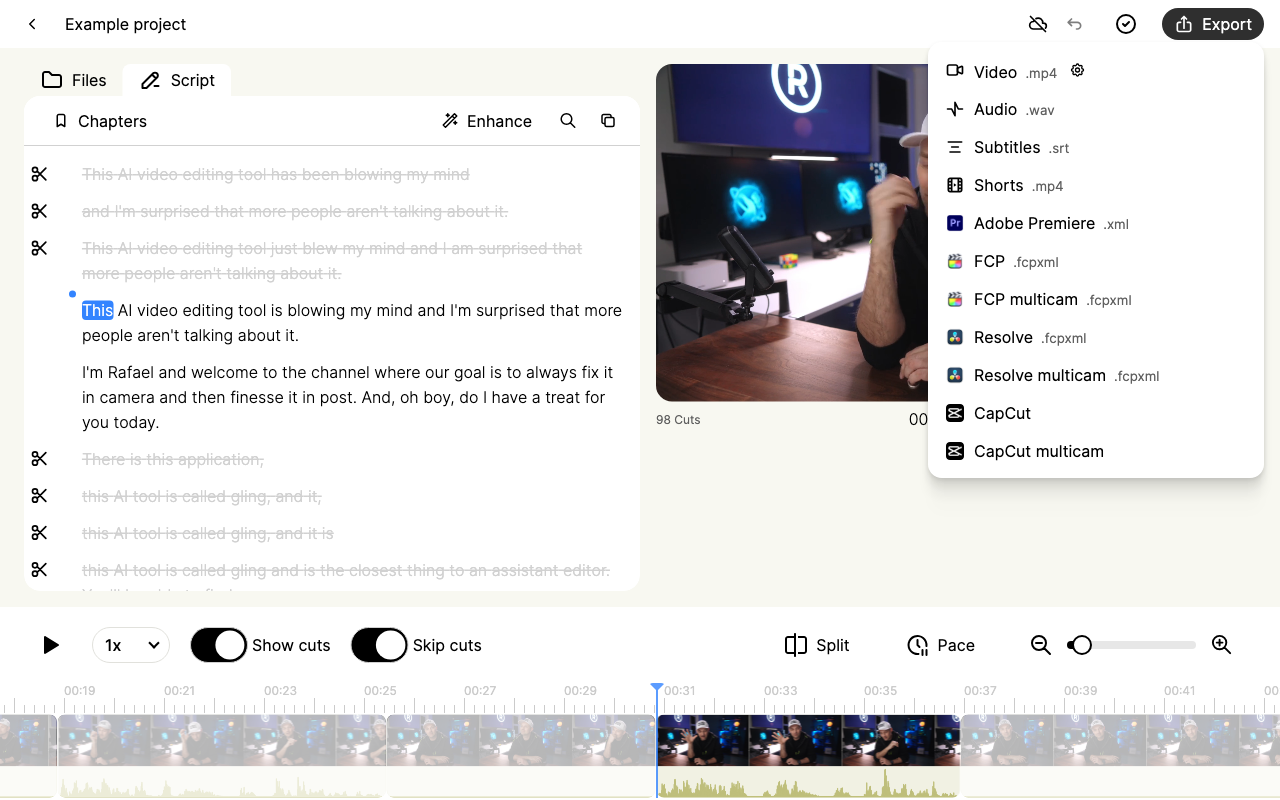
Open the Final Cut export menu screenshot at full size.
Import into Final Cut Pro
- Open the library where you want the edit.
- Choose File > Import > XML and select the FCPXML from Gling.
- Locate the source files if Final Cut reports missing media.
- Open the imported project and play several sections.
Review before continuing
Check the first and last lines, a few cuts, audio and any camera changes. Compare these with the Gling preview. Regular and multicam exports create different editing structures, so verify you chose the intended option.
A timeline handoff should not be treated as proof that every Gling visual effect or caption style transferred. Export subtitles separately as SRT if needed.
If import fails or media is offline
Keep the original FCPXML and media folder together. Send support your Gling and Final Cut versions, export option, error text and whether Final Cut can open the original media directly. Include a timestamp if the imported edit differs from Gling.