

Use the Gling desktop app and an eligible plan for a Premiere Pro timeline export. This creates an editable timeline handoff rather than a finished MP4.
Use the Adobe Premiere (.xml) option. FCPXML is a different format and cannot be imported directly by Premiere.
Export from Gling
- Review your cuts and play through the project.
- Open Export and choose Adobe Premiere (.xml).
- Save the XML and keep the original source media in a stable folder.
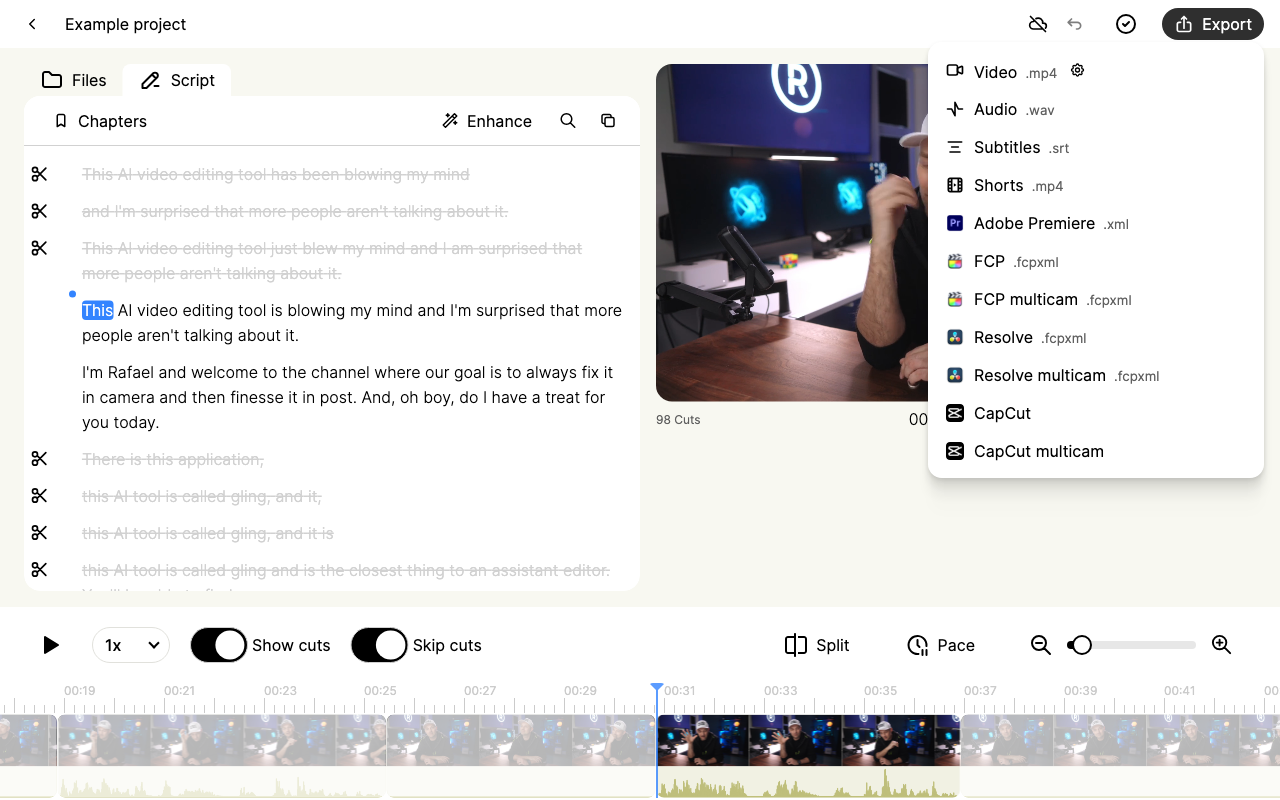
Open the Premiere export menu screenshot at full size.
Import into Premiere Pro
- Open the Premiere project where you want to continue editing.
- Use File > Import and select the exported XML.
- If Premiere asks for missing media, locate the matching original or generated source files.
- Open the imported sequence and inspect it before adding more edits.
Check the handoff
Compare the first and last spoken lines, several cuts and the audio with Gling's preview. Check frame rate, source links and audio channels. A successful import alone does not prove that every part of the edit matches.
Do not assume that Gling's caption styling, effects or overlays transfer as editable Premiere effects. Export an SRT separately if you need subtitles.
If something differs
Send support the Gling and Premiere versions, regular or multicam workflow, timecode choice and the approximate timestamp of the first mismatch. Keep the exported XML and source files available.