

Resolve timeline export requires the Gling desktop app and an eligible plan.
Export from Gling
- Open Export after reviewing your edit.
- Choose Resolve (.fcpxml), or Resolve multicam for the corresponding workflow.
- Keep the FCPXML, any companion audio folder and your source media available. Do not move just the XML if Gling created accompanying files.
If Gling asks Keep the media timecode?, Keep timecode retains the source timecode. Strip timecode creates or reuses media copies starting at zero. Retain those copies with the handoff.
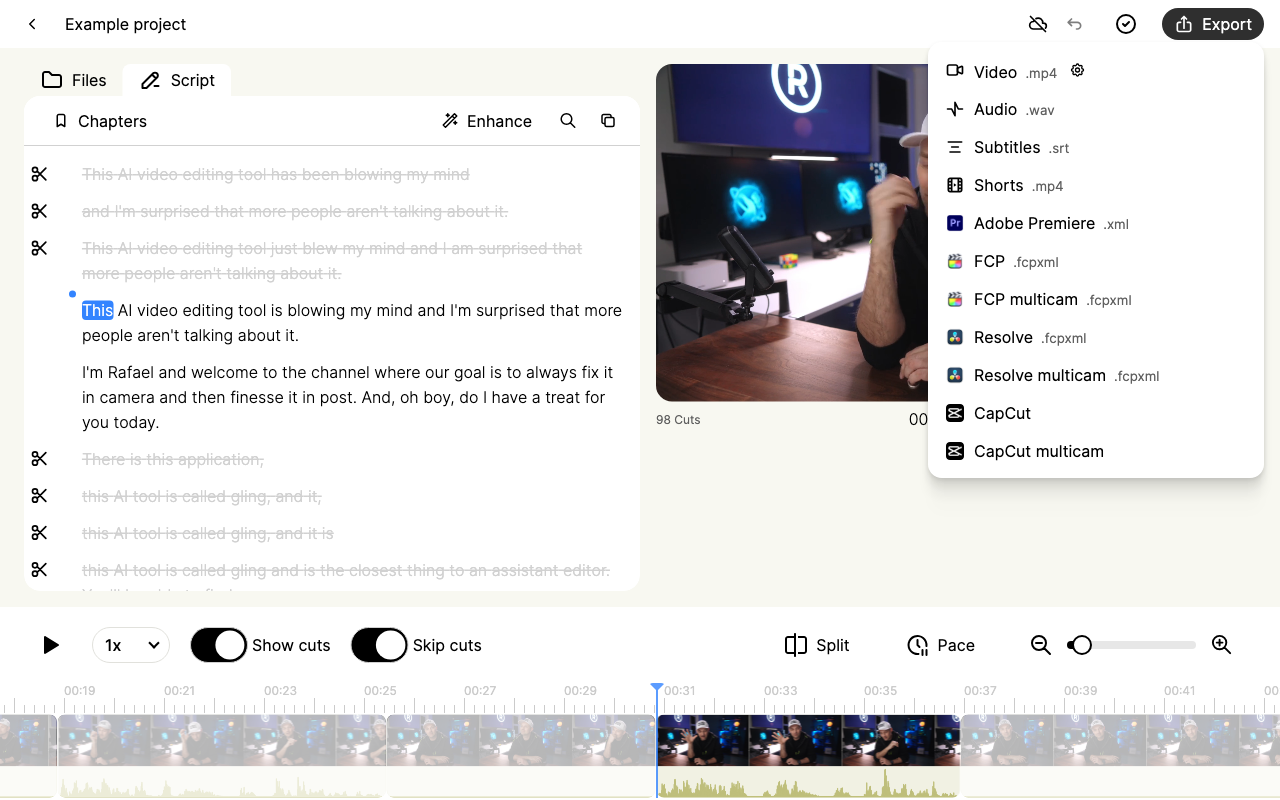
Open the Resolve export menu screenshot at full size.
Import into Resolve
- Open your Resolve project.
- Choose File > Import > Timeline and select the exported FCPXML.
- Follow Resolve's media-location prompts if sources are not found automatically.
- Open the imported timeline and compare it with Gling.
Check timing and audio
Play the beginning, several cuts and the ending. Check timeline duration, audio, camera changes and source links. Check subtitles separately; do not assume caption styling or every visual effect transfers through the timeline file.
If you see only one frame or unusual timecodes
Keep the failing export and the Gling project. Send support both application versions, regular or multicam choice, expected duration and a screenshot of the imported timeline.
A past multicam timing defect produced a single-frame timeline in Resolve. It required a repair derived from that project's saved edit. Do not replace invalid values in the XML with zero or reuse another project's repaired file. Support can check whether your export has the same problem.