

If you paid for Gling but your account shows the Free plan, you may be signed in with a different email address or sign-in method from the one connected to your subscription.
Check which account you are using
- Open Gling.
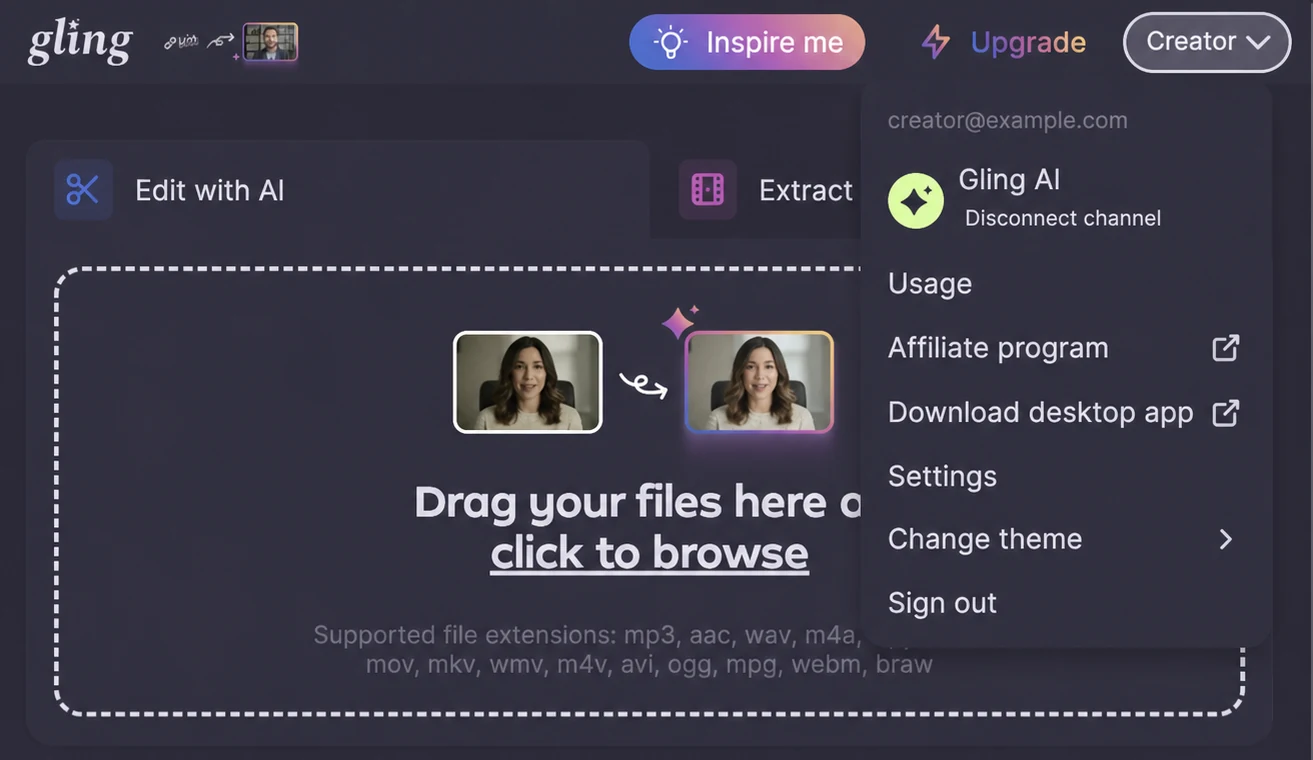
- Open the account menu in the top-right corner.
- Compare the email shown with the email on your Gling receipt or invoice.
- If they are different, sign out and sign back in with the account used for the purchase.
Use the same sign-in method
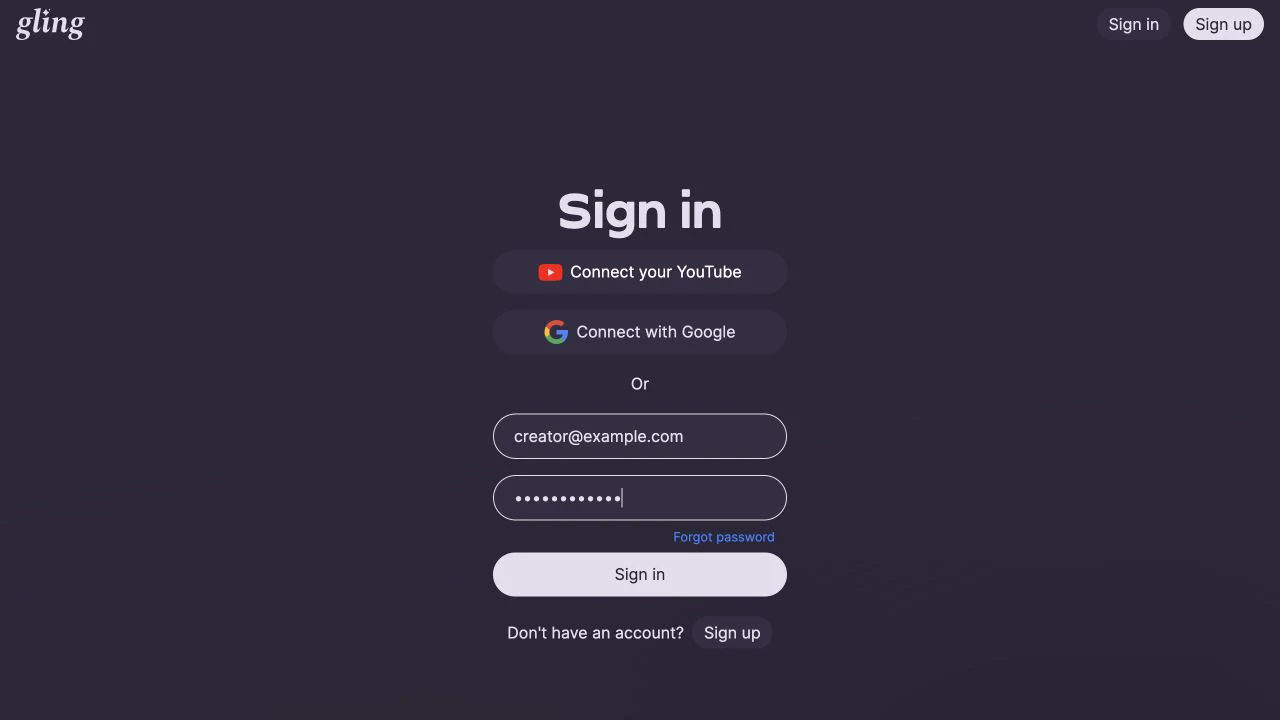
Use the same sign-in method you used when you subscribed:
- If you signed in with Google or YouTube, choose that option again.
- If you signed in with an email and password, use those credentials.
- If several Google accounts are open, make sure you select the account connected to your subscription.
Confirm which plan Gling detects
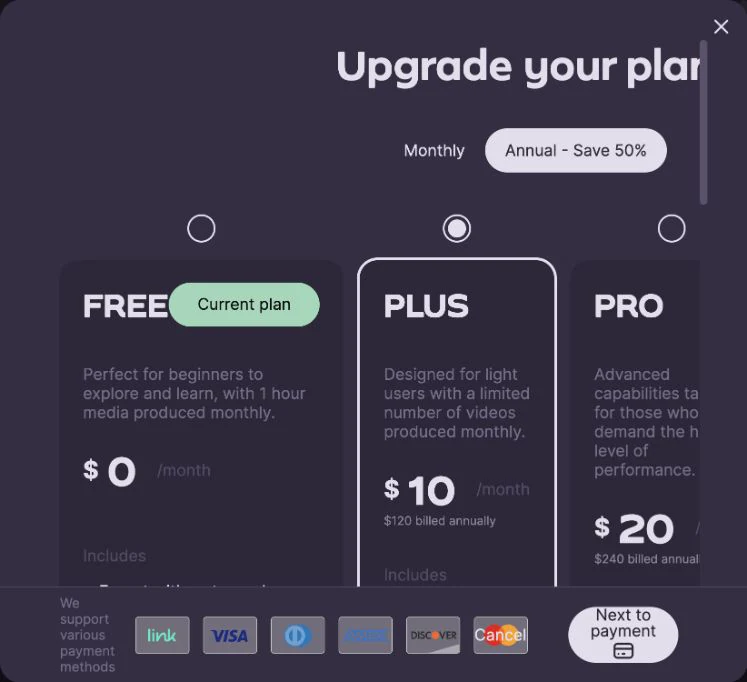
If Upgrade appears in the top bar:
- Select Upgrade.
- In the Upgrade your plan window, find the plan marked Current plan.
- If FREE is marked Current plan, close the window and continue with the steps below.
Refresh your account
If the email address is correct but Gling still shows the Free plan:
- Sign out of Gling.
- Close and reopen the Gling app or browser tab.
- Sign in again using the original sign-in method.
- Open Upgrade and check the plan marked Current plan again.
If the paid plan appears on the web but not in the desktop app, compare the signed-in email in both. Sign out of the version showing the Free plan, then sign back in with the account that shows the paid plan.
Avoid creating a duplicate subscription
Do not purchase another subscription yet. If your existing subscription belongs to another account, a second purchase may create two active subscriptions.
If the paid plan still does not appear
Email Gling Support at info@gling.ai and include:
- The email currently shown in Gling
- The email used for the purchase, if different
- Your latest Gling receipt, invoice PDF, or invoice number
- A screenshot showing FREE marked as Current plan
- Whether you use Gling on the web or in the desktop app
Do not send your password, verification codes, or full payment-card details.