

Choose the language spoken in the recording before processing. A correct language selection helps transcription, but it does not guarantee perfect words, punctuation or AI cuts.
Select the language
- Add your recording to a new project.
- Check Video spoken language and select the language used in that recording.
- Review the setting for each new project, especially if you work in different languages.
- After processing, inspect the transcript and listen through the cuts before exporting.
The current selection includes English, Spanish, French, German, Italian, Portuguese, Dutch, Ukrainian, Russian, Hebrew, Hindi, Danish, Norwegian, Swedish, Finnish, Czech, Polish, Slovak, Hungarian, Greek, Arabic, Chinese, Korean, Japanese, Bulgarian, Turkish, Thai, Persian and Romanian.
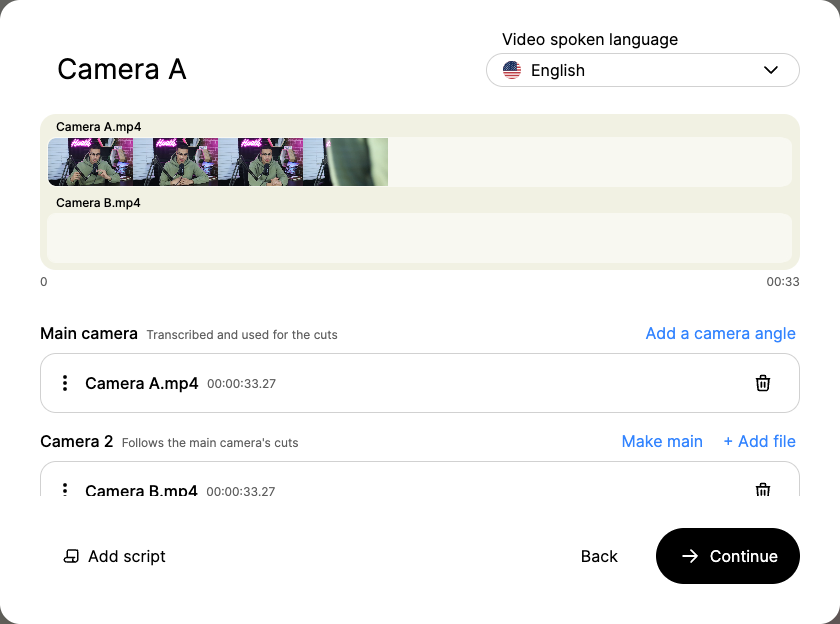
Open the spoken language screenshot at full size.
A script is not a replacement transcript
The script option supplies phrase hints to speech recognition. Include only material that is actually spoken in the recording. It does not turn your pasted text into the authoritative timed transcript or translate the recording. Set the spoken language even when you provide a script.
The setup selects one spoken language for a processing request. For recordings that switch between languages, contact support about your workflow before processing a large project; do not assume that one selection guarantees accurate handling of every language in it.
If words or punctuation are wrong
Use Correct for selected transcript text. Review punctuation and the exported SRT separately. Correcting text does not generate replacement speech.
If the transcript looks right but speech sounds clipped, compare the original, Gling preview and a saved export. Use Show cuts and Uncut to restore a removed section, or review pacing and padding. A playback defect can sound like a bad edit without changing the saved output.
If little or no speech is detected
Play the original and check that the main track contains intelligible speech from the intended microphone. Music, singing, silence or heavily processed audio may not produce a useful spoken transcript. Avoid repeatedly processing the same file while investigating a failure, because processing attempts can use allowance.
Send support the project name, selected language, relevant timestamp, input type and exact error. If the wrong language was selected, ask about the available recovery path before recreating a long edit.