

B-roll appears over your main recording. You can add it after Gling has created the edit, then adjust the overlay without replacing the spoken recording.
Add a clip or image
- In the transcript, select the words where the overlay should appear.
- Choose + Add, then B-roll video or B-roll image.
- Sign in if the library asks you to.
- Use Stock to search available footage, Upload for your own file, or AI for available generation options. Plan access and generation options can differ.
- Choose the asset, then play the section to check its placement and duration.
You can also drag a supported video or image from your computer onto the timeline. Keep the source file available until you have checked saving, sync and export.
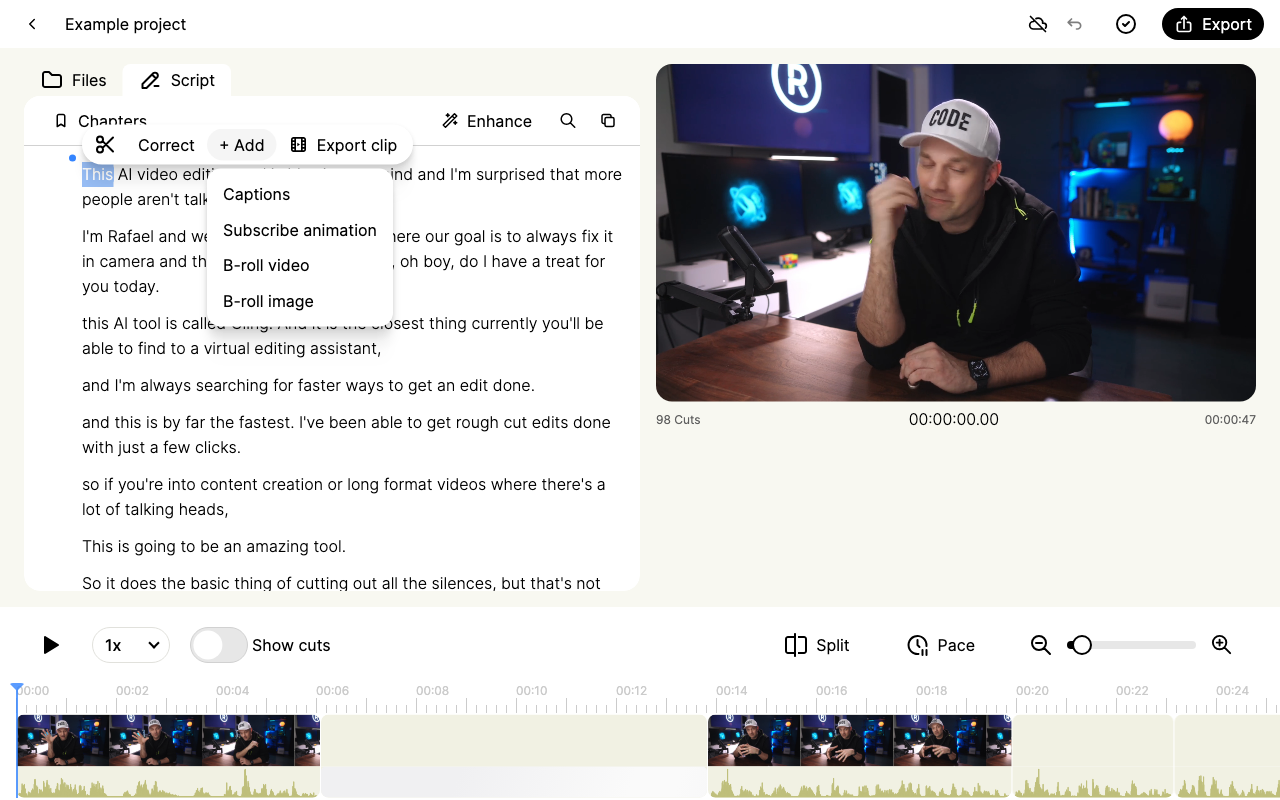
Open the B-roll menu screenshot at full size.
Replace, move or trim B-roll
Select the B-roll item to reopen its library and choose a replacement. Drag the B-roll block along the timeline to change when it starts. Adjust its left or right edge to change how long it appears, then check the result against the spoken sentence.
A relevant asset can still appear at the wrong moment. Automatic placement can differ between releases or account rollouts; adjust the actual item rather than assuming that reinstalling will enable a different placement system.
Remove B-roll
Right-click its timeline item and choose Delete. Check the preview to confirm that the main recording is still present. Use Undo if you removed the wrong item.
Turning off Enhance > B-rolls removes B-roll added by that automatic enhancement. It does not mean that every manually added overlay has been removed.
Export versions with and without overlays
Export the first version before changing the edit. Give each output a different filename. If you remove overlays for another export, review the full timeline first. An MP4 is a rendered version, not a second editable copy of the project. Undo can reverse supported recent edits, but it should not be your only long-term backup.
If adding B-roll fails
Record whether the error affects Stock, Upload or AI, the exact message and the project name. Keep the failed item and originals for investigation. For commercial use and provider conditions, see asset usage rights.