

Gling saves edits as you work. Local saving and cloud sync are separate: an edit can be saved on the current device while its cloud sync is paused or unavailable.
Find an existing project
- Return to the Gling home screen and look under Projects.
- Set Filter to All. A Videos, Audios or Shorts filter can hide the project you need.
- Use Sort by to try Recent or Alphabetical.
- Confirm that you are using the same account, browser profile or desktop installation where you worked on it.
A project stored in one browser profile is not the same local copy as a project in another browser profile or in the desktop app.
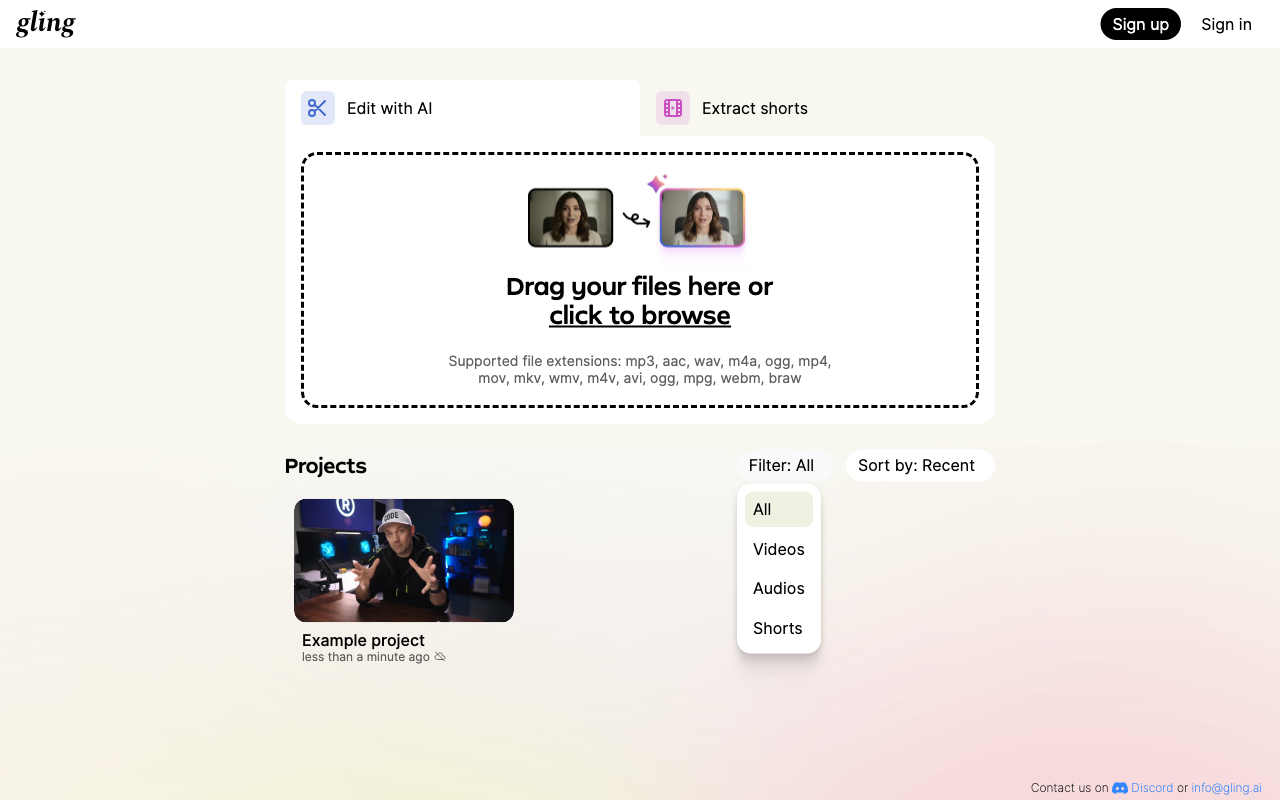
Open the project filter screenshot at full size.
Understand what is saved
The editor saves project changes locally and queues eligible project and media files for cloud sync. Cloud sync requires an internet connection and the account that owns the project. The app can show a cloud-off indicator or a sync warning when that connection is unavailable.
If Gling reports that edits are saved only on this device, keep that device's copy. Do not clear browser site data, remove application data or delete the project while trying to fix sync. An exported MP4 is a finished video, not a complete editable-project backup. Keep your original recordings too.
Continue on another device
- On the original device, reconnect to the internet and open the project with its owning account.
- Check that no upload, download or sync error remains. Give pending transfers time to complete.
- On the second device, sign in to the same account.
- Find and open the project. Allow any required project and media downloads to finish.
- Check the latest edits and media before closing or removing the original local copy.
A project created by a different account is not synced under the account currently signed in. Return to the original account if that is the case. Signing in later does not by itself prove that an earlier guest project has uploaded.
If a project is missing or will not open
First check the original device, account and project filters. Reconnect and reopen the home screen. If the project card offers Retry, use that recovery action. Retry is not available for every kind of error.
Keep any readable local copy and record the exact warning. Contact support with the account email, project name, last device where it worked, approximate time of the last edit and a screenshot of the project card or sync error. Support can investigate available recovery options without promising that every missing or deleted copy can be restored.
If Gling asks for the original file again
The web editor can need access to an original recording on your computer even when the cuts and settings have synced. Grant the browser's file-access prompt for the original working folder where appropriate. Reconnect the source drive and keep the original file unchanged; a finished MP4 is not a replacement for the source reference.
The billing email can differ from the account that owns a project. Confirm the email shown inside each device's account menu, rather than using the receipt address as proof of project ownership. Read storage and deletion effects before moving or removing files.