

Open the account menu in Gling and choose Usage. The Account usage window shows your current period, hours edited, generated-video words, compound usage and credits. Use the period displayed for your account when checking a reset date.
Monthly plan allowances
- Free: 1 hour per month; No included link-generation words
- Plus: 10 hours per month; 300 words per month
- Pro: 30 hours per month; 900 words per month
- Elite: 100 hours per month; 2,700 words per month
These are alternatives or a combination, not two independent full allowances. Check the current pricing page and your account for the plan available to you.
Understand compound usage
Editing and link-generated videos share the allowance. For example, on Plus, 5 hours of processed media uses 50%, and 150 generated-video words uses another 50%. Together they use 100% of the shared allowance.
Media usage is based on recordings submitted for processing, not just the length of the finished edit. Cutting a recording down to a shorter video does not turn it into a shorter original processing request. Adding more media for processing can use more allowance.
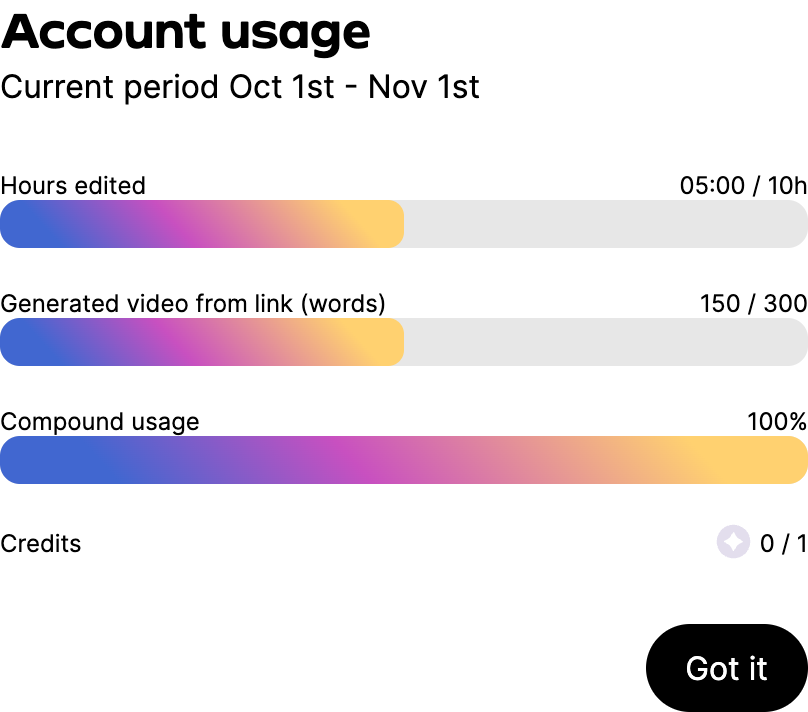
Open the account usage screenshot at full size.
Check when usage resets
Annual billing still provides a monthly usage allowance. It does not make the full year's hours available at once. Unused monthly hours do not carry into the next month.
Read Current period in Account usage for your account's dates. A paid account's usage cycle follows its subscription timing, so do not assume it always resets on the first day of a calendar month. Credits appear separately and should not be treated as the same counter as monthly hours or generated-video words.
If you reach the limit
Check how much allowance the next processing request needs and whether applicable credits are available. You can wait for the next period or review a different plan. A new project can exceed the remaining allowance even when the meter is below 100%.
Before changing plans, read Manage your plan, payments and invoices. Plan changes can affect billing immediately. If a usage amount looks wrong, send support your account email, a screenshot of Account usage, the project name and when you processed or added the media.
If failed work used allowance
Stop repeated processing attempts while investigating. Send support the affected project, the approximate attempt times and time zone, the error and a screenshot of Account usage. Explain whether the job failed, produced unusable output or was processed again.
Support can review what happened. Do not assume an error automatically resets the monthly counter or guarantees compensation. Project credits and the displayed monthly usage counter are separate; any confirmed credit should be described by its actual scope.