

Zoom changes the crop inside your video frame. The timeline's zoom-in and zoom-out controls change the timeline view; they do not crop the finished video.
Turn on automatic zoom
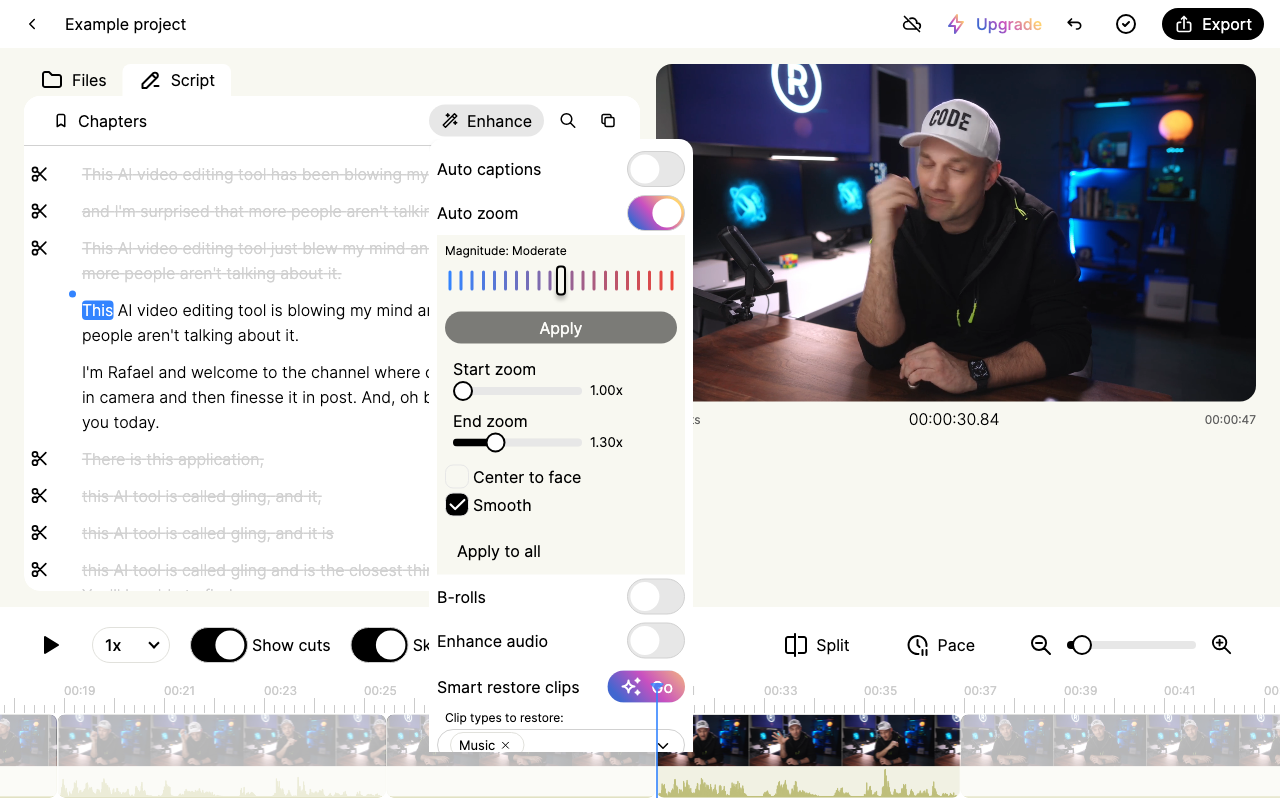
Open the full-size screenshot.
- Open a video project and choose Enhance.
- Turn on Auto zoom.
- Play several sections and check that the crop suits the speaker and the recording.
- To regenerate the automatic pattern, change Magnitude and choose its Apply button.
Magnitude controls the generated zoom pattern. It is separate from the start and end scale of an individual zoom.
Adjust the zoom range
The expanded controls include Start zoom, End zoom, Center to face and Smooth. A scale of 1.00x leaves the image at its normal size; a larger scale crops closer.
Apply to all is a project-wide action. Review it carefully if you already adjusted individual clips. To change one section, select its timeline clip and use the clip's zoom controls rather than assuming a project-wide action affects only the selection.
Remove unwanted zoom
Turn off Auto zoom to remove the project's zoom effects through that control. Review all manually adjusted sections afterward, because turning it off is broader than removing one zoom. Use Undo to reverse a supported recent change if needed.
Check portrait and exported framing
Portrait Shorts need a separate crop check. Leave space around faces, captions and graphics. Compare the same timestamp inside Gling and in the saved MP4 or external-editor timeline.
If the framing changes only after an editor handoff, keep the exported project file and report both application versions, the timestamp, source dimensions and screenshots of the two results. Do not assume that changing the source recording or generating the project again is necessary.